Completing an RF-directed replenishment
To complete an RF-directed replenishment:
-
Select
. The
Task Manager (T1) screen is displayed.
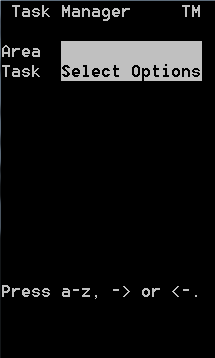
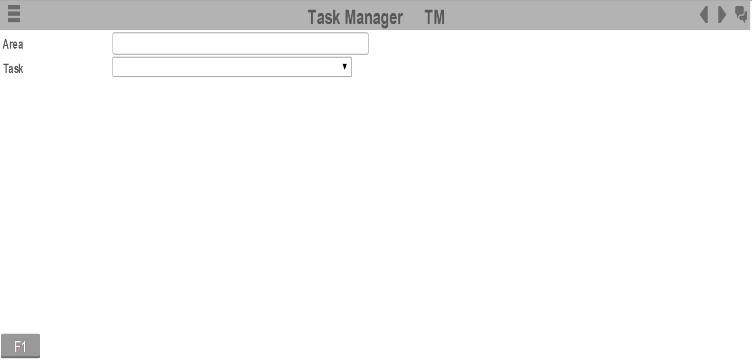
-
To display the first
Replenishment task, press
twice. If
applicable, the
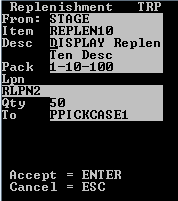
Replenishment (TRP) screen is displayed with all
replenishments for the areas or zones you designated in the Area1 field. You
must execute these tasks in the order in which they display.
-
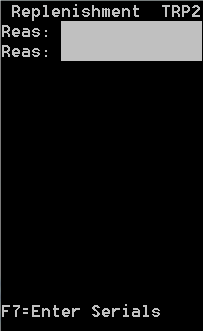
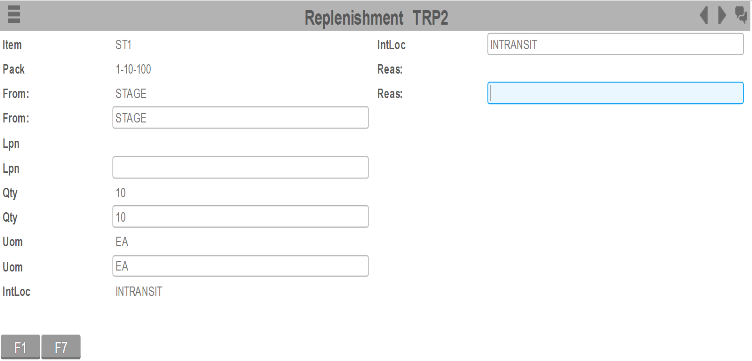
Confirm this
information:
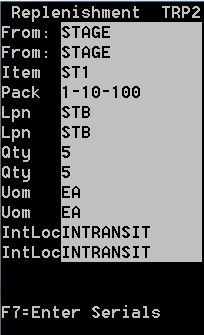
- From
- From location, or current location of the item.
- Item
- Item being replenished
- Pack
- Code identifying the set of UOM by which the item is tracked
- Lpn
- License plate number for the item.
- Qty
- Quantity to replenish.
- Uom
- Unit of measure for the item, such as case, pallet, innerpack, or each.
- IntLoc (In Transit Loc)
- Temporary location for the move to record the first step of
the transaction. This field can be used differently depending on operation
needs. Possible uses include:
- Use a default value of INTRANSIT to show the inventory is in process. If always leaving this as INTRANSIT, the RF screen can be modified to hide the field from the user.
- Allow the operator to enter or scan a different temporary location, such as an equipment ID number. This improves the tracking of the physical location of the inventory while the move is in process.
- Reas
- Reason code associated with the deployment
-
Press
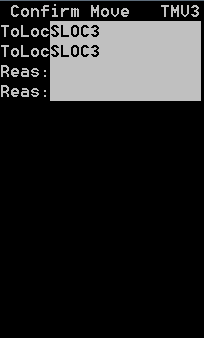
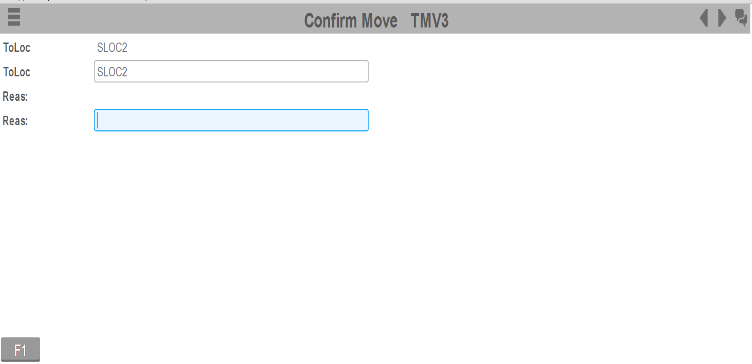
. Confirm this
information:
- To
- To location, or location where you are placing the item.
- Reas
- Reason code associated with the replenishment.